

 Your system must be capable to run Aero engine to use this theme. I have created this theme specially for Aero users though Basic users can also use this theme and they’ll get new Details pane (shell style), new progressbar, buttons, checkbox, radio buttons and a few other small new changes.
FEATURE LIST:
1. Much transparent startmenu and taskbar.
2. Startmenu has square corners instead of round corners which looks cool.
3. Only active window taskbar button is visible to make the taskbar more clean.
4. Checkbox and radio buttons are Apple leopard styled.
5. Cool blue progressbar in dialog boxes.
6. Blue Control panel sidebar.
7. Cool dialog box buttons.
8. Cool Details pane which have different colors for different folders like Video, Pictures, etc.
9. Transparent addressbar and searchbar.
10. Transparent titlebar and taskbar in maximized windows.
11. Darker hovered, clicked, selected area in Explorer as well as in menus. Vista default selection image is very light and doesnt looks clearly sometimes. So I have tried to make it more darker.


 USB Safely Remove is a neat and handy replacement for the standard 'Safely Remove Hardware' tool. It will make life easier and save time for those who have several hotplug (USB, SATA, Firewire) devices and those who use them extensively.
Allows to view, edit and stop(remove) connected USB Flash Drives. Offers support for keyboard shortcuts and system-wide hotkeys.
Safely Remove completely replaces the features of the standard Safely Remove Hardware icon and also implements a number of unique features.
Convenient user interface: toolbar with familiar MSOffice-like buttons, statusbar, right-click popup menu.
Allows to define sounds on USB Flash Drive StopLoad events. Allows to hide Windows USB hotplug manager.
Features:
· Safely remove in one click!
· Displaying processes which are preventing USB device from being stopped
· Powerful command line support
· 3 methods to stop devices.
· Automatically assigning hotkeys.
· Forbidding stopping any device.
· Customizable names and descriptions for devices.
· Notifications about connecting/disconnecting devices with the help of a balloon tooltip.
· Playing sounds or running external programs when devices are connecteddisconnected.
· Restricting access to the features of the program with a password.
· Loading custom images for devices
· Ability to operate SATA drives

A screensaver is a computer program originally designed to conserve the image quality of computer displays by blanking the screen or filling them with moving images or patterns when the computers
are not in use. Today, screensavers are primarily used for entertainment or security purposes. Some screensavers activate a useful background task, such as a virus scan or a distributed computing application (such as the SETI project.)
How do I download?
We have thousands of free screensavers and wallpaper available to download from our website. Click on one of the screensaver or wallpaper links below. Click "Next" on the window that pops up. Then you will get a security message asking if you would like to install this program. Choose "Run" to continue. Enjoy!
How do I use my own photos as a screensaver?
Download the Google Photos Screensaver and do it with ease! Google Pack also includes many other fantastic programs you shouldn't be without!
 Vista Transformation Pack will give to your Windows XP system the new and cool look of Microsoft's future operating system: Windows Vista. The pack changes most of the system icons, skins and toolbars and also adds new enhancements to your desktop such as a dock bar or a different system tray clock. It is free and does a great job of giving machine a look similar to Vista.
It does have uninstallation options in case you decide you want to get rid of it, so there really isn’t anything to lose. However, when you install the software it has to overwrite some system files (it modifies things like the boot screen) so Windows will prompt you stating that your system files have been changed. It will ask whether you want to change them back or leave them, so just leave them if you want the system to function properly.
Features of "Vista Transformation Pack":
• Boot screen
• Welcome Screen / Logon Screen
• New msstyles files (visual styles)
• New desktop and file icons
• New toolbar icons
• Progress Dialogs
• Sounds scheme
• System Tray icons
• New Wallpapers
• Windows Media Player Skins
Vista Transformation Pack 9.0 Keynotes:
New 3rd-party applications
ViSplore - Vista Glass explorer simulator
Vista Drive Icon - adding free space percentage in your drive icon like Vista explorer
Vista Rainbar - Lightweight Vista sidebar based on Rainmeter that even consume less resources than real Vista Sidebar
Improved 3rd-party applications
ViStart - Files indexing for documents search, improved reliability and compatibilities
ViOrb - Improved graphic and reliability (C++ re-written)
TrueTransparency - Improved reliability with improved AeroStyle's glass border
WinFlip - Improved stability and reliablity
New functionalities
Setup personization - Allow customizing Vista experiences upon installation without access to Welcome Center
Windows XP Service Pack 3 compatibilities - Now you can enjoy Vista themes after installation with Windows XP Service Pack 3
x64 compatibilities - More secured x64 installation without getting hurt by incompatibilities
There're also a lot of bug fixes and refinements in the program but let's just keep it simple with these for now. You can experience the rest later by yourself.
Changes in Version 9.0.1:
- Added ViSplore in unsafe applications list (It's first beta version after all)
- Added restrcting applications don't meet the requirements from startup list (But not from installation so you can set it manually still)
- Added restrcting to set unsafe applications in Personalization page (Welcome Center only)
- Fixed Windows XP Service Pack 3 compatibilities (Even non-RTM version can apply so make sure you use official build 5512)
- Fixed "Do not show this welcome screen after restart" option bug that always keep program in startup instead
- Updated Vista Rainbar's launcher for constant waiting cursor activity issue
- Updated Vistalize basic desktop theme components to apply font and toolbar in Personalization
- Updated VisualTooltip default configuration to set area space in bottom from 30 to 0
- Updated WinFlip's configuration for higher reliablity and compatibilities with ViStart
 Vista Transformation Pack 8 will transform your Windows user interface to ultimate Windows Vista alike looks that everyone will never notice it’s the same old Windows XP.
Vista Transformation Pack will replace many of the resources in Windows XP/Windows Server 2003. It can change such things as:
* Boot screen
* Welcome Screen / Logon Screen
* New msstyles files (visual styles)
* New desktop and file icons
* New toolbar icons
* Progress Dialogs
* Sounds scheme
* System Tray icons
* New Wallpapers
* Windows Media Player Skins
* And much more
 Have to say that compared to Wba themes, I prefer VS ones, which is easier to apply and it requires you a Vista only, and the key point is it's free to use. However, based on the third-party software Windowblins, Wba can be designed as one wish and sometimes it's more beautiful than VS ones. And here is one, one of the top ten themes in my opinion.
 16 MB
16 MB
Include:
Aurora_Reloaded___WP_Pack
For SP1 (17306) Build 652
TakeControl
Vista SP1 Bootscreen for RTM
Welcome Center
Top Shell including recolored animations
Sidebar Theme
Back-Forward Buttons
Blue Task Manager
Style
Uxtheme patches Download:
 Here you will find 17 visual styles for Windows XP, modify the standard system interface, as well as a package VistaStyle for simple and rapid transformation of Windows XP to Windows Vista.
В пакет также добавлена утилита UXTheme Multi-Patcher 5.0, для систем не содержащих пропатченную библиотеку. The package also added utility UXTheme Multi-Patcher 5.0, for systems not containing propatchennuyu library.
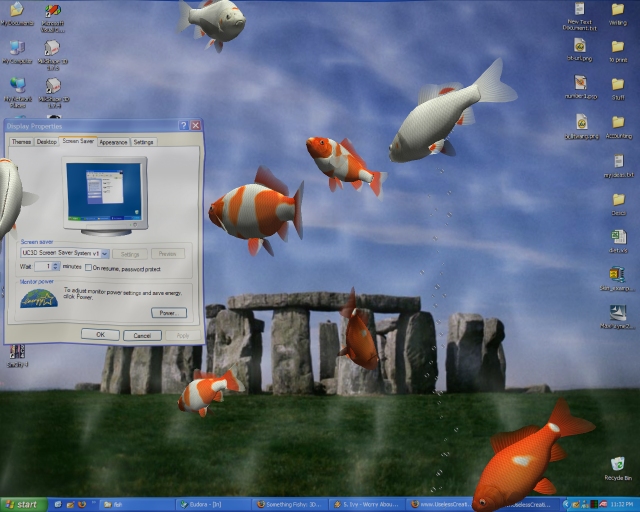 Watch as your monitor fills with water and real 3D fish begin to swim around the screen you were just working on!
Features:
-Real time 3D fish that don't just swim back and forth, but towards you and away from you, up and down. Like real fish!
-Uses realistic 3D fish models, not just flat 2D images like other screen savers do!
-Dymanic underwater lighting. So if the surface of the water ripples, so does the refracted light!
-Download additional fish with ease! The registered version lets you download fish right into the screen saver from the --Settings screen on the Mac OS X version, and from the website for Windows. It couldn't be easier!
-You can select the background you want! From your wallpaper or a random image (jpg, png or gif files), as well as the option to capture the current screen.
-Select between warm and cold, salt water fish, and fresh water fish, or mix them all together! Remember virtual fish can all survive in the same virtual water!
-The fish's eyes move, so they now look around as they swim across your screen.
-Background Hum/Bubbling sound for that real aquarium atmosphere.
-Many options so you can customize it to your liking. With the full version, you can have as many as 40 fish swimming around at once, as long as your CPU can handle it!





